Harvest
This page explains what Harvest is, how to connect it with ClickUp and how to track correctly your daily work.
What is Harvest?
Section titled “What is Harvest?”Harvest is Terra’s official time-tracking system.
We use it to:
- log hours against specific projects and tasks
- generate reports for both internal planning and client-facing needs
- analyze how much time different phases of a project require
- understand team workload and forecast availability
A good time-tracking habit helps the entire company operate smoothly — and it becomes second nature very quickly.
Time Tracking with Harvest
Section titled “Time Tracking with Harvest”- Harvest is integrated into ClickUp. Start and stop your timer directly from the task.
- Each entry must include:
- Correct Harvest client/project mapping
- Correct Team (Web Development, in your case)
- Notes (ticket number + short description)
Connect ClickUp with Harvest
Section titled “Connect ClickUp with Harvest”In order to track your cards correctly, you’ll need to connect your ClickUp with Harvest. Please follow these steps:
01. Enable Harvest in ClickUp
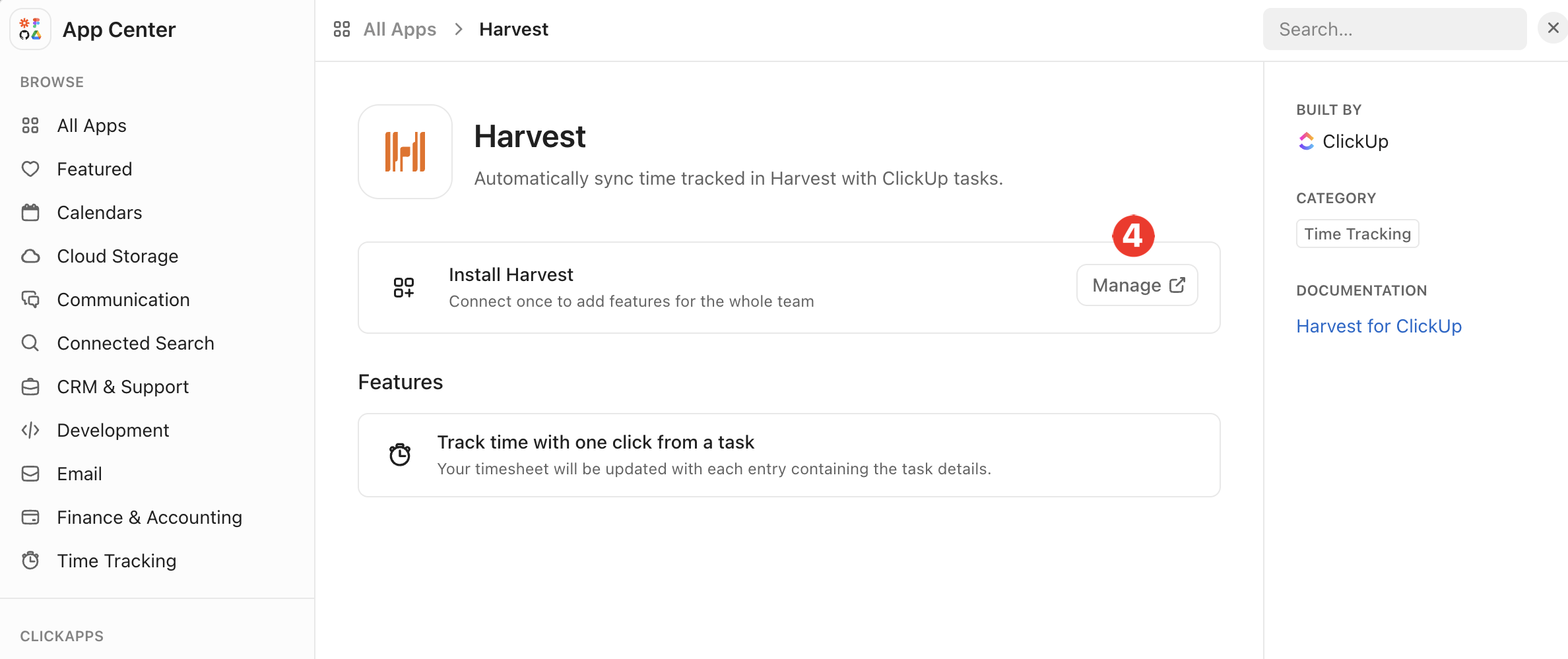
Section titled “01. Enable Harvest in ClickUp”- Go to ClickUp Settings → App Center.
- Search for Harvest under the Time Tracking category.
- Click Manage.


02. Authorize Harvest
Section titled “02. Authorize Harvest”- A window will open asking you to log into your Harvest account.
- Allow ClickUp to access your Harvest workspace.
03. Add the Harvest Timer to Tasks
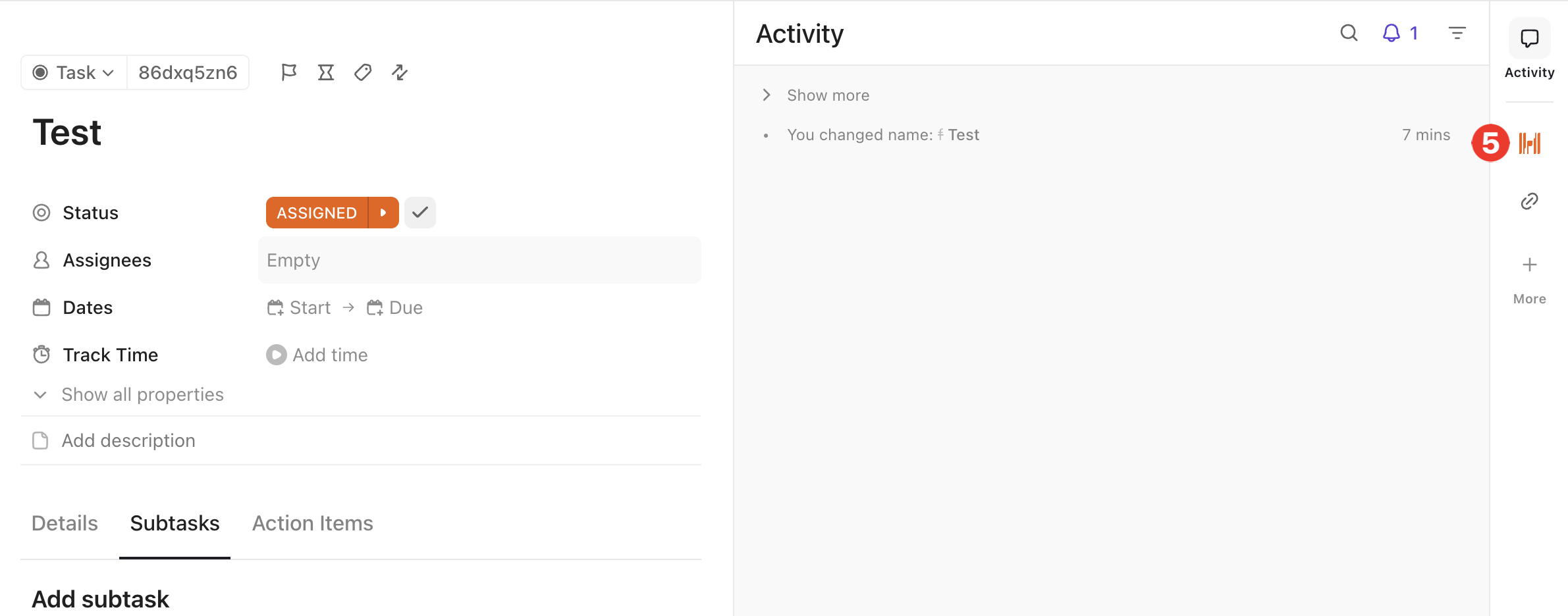
Section titled “03. Add the Harvest Timer to Tasks”- Open any task in ClickUp.
- In the task view, you’ll see the Harvest icon (a small timer).
- Click it → choose the Harvest project and task type you want to track time under.
04. Start and Stop Time Tracking
Section titled “04. Start and Stop Time Tracking”- Click Start Timer to begin tracking.
- Work on the task as usual.
- When done, return to the ClickUp task and click Stop Timer.
- The time will be logged directly into Harvest, under the selected project/task.
05. Review Time in Harvest
Section titled “05. Review Time in Harvest”- Go to Harvest → Timesheets.
- You’ll see all time entries synced from ClickUp tasks.
- From here, you can generate reports, invoices, or review logged hours.
Submit week approval
Section titled “Submit week approval”At the end of every week, you should Submit your week so your PM can review it.

Good Harvest Practices
Section titled “Good Harvest Practices”- Ensure the correct Teamis selected (typically Web Development for your work)
- Add a brief description of what you’ll be working on (e.g., “Implementing card module C” or “Fixing header alignment issue”)
- Keep notes concise but descriptive enough that anyone reviewing can understand what was done
- Only run ONE timer at a time — pause or stop the current timer before starting another
- Stop your timer during lunch breaks and extended breakse
- Always stop your timer when you finish a work session or task
- Before submitting your week, review your Harvest timesheet for accuracy
- Submit your week every Friday or at the end of your work week
- Always submit before PTO (Paid Time Off) or holidays
Knowledge Check
Test your understanding of this section
Loading questions...