Zoom
This page explains what Zoom is, how to make an efficient call and some tools that will help you in your meetings.
What is Zoom?
Section titled “What is Zoom?”Zoom is Terra’s video meeting platform. It’s where we join daily stand-ups, sync calls, client meetings, interviews, workshops, and internal check-ins.
We use Zoom to:
- stay connected as a remote-first team
- communicate efficiently with clients and stakeholders
- join project kickoffs, reviews, and demos
- collaborate live when async communication isn’t enough
- share screens to troubleshoot issues or review work together
Meetings and Calls
Section titled “Meetings and Calls”Terra works collaboratively, and because we are a remote-first team, calls are a normal part of our daily workflow. Some are planned in advance, others happen spontaneously depending on the need.
Scheduled calls
Section titled “Scheduled calls”Scheduled calls live in Google Calendar, include an automatic Zoom link and are used when a topic requires structure. For this kind of meetings, there’s usually a CallSheet in Slack so the call goes through every subject needed. Types of scheduled calls:
- Team calls (e.g., weekly Commit & Connect)
- Project dailys (set by PMs)
- 1:1 alignment calls when you need someone’s time to review or clarify something
Schedule a call when:
- multiple people need alignment
- async communication becomes slow
- you need focused time from someone
- you need a structured review or walkthrough
Unscheduled calls
Section titled “Unscheduled calls”Used for quick, immediate collaboration. Use an ad-hoc call when:
- Slack isn’t enough
- async communication leads to confusion
- you need a 5-minute unblocker
- a small issue requires screensharing
Screensharing
Section titled “Screensharing”Screensharing is one of the most useful tools in our workflow, you can do it by clicking on SHARE in the bottom of your zoom call.

Recording Calls
Section titled “Recording Calls”Some calls — especially demos, walkthroughs, and training sessions — may need to be recorded so teammates can rewatch them later.
For call recording, you just need to click in the RECORD in the bottom of your zoom call.
The videos will store in your computer in Documents/Zoom. Share these recordings in the ClickUp task, project Canvas, or relevant Slack thread.
Annotating & Drawing on Screen
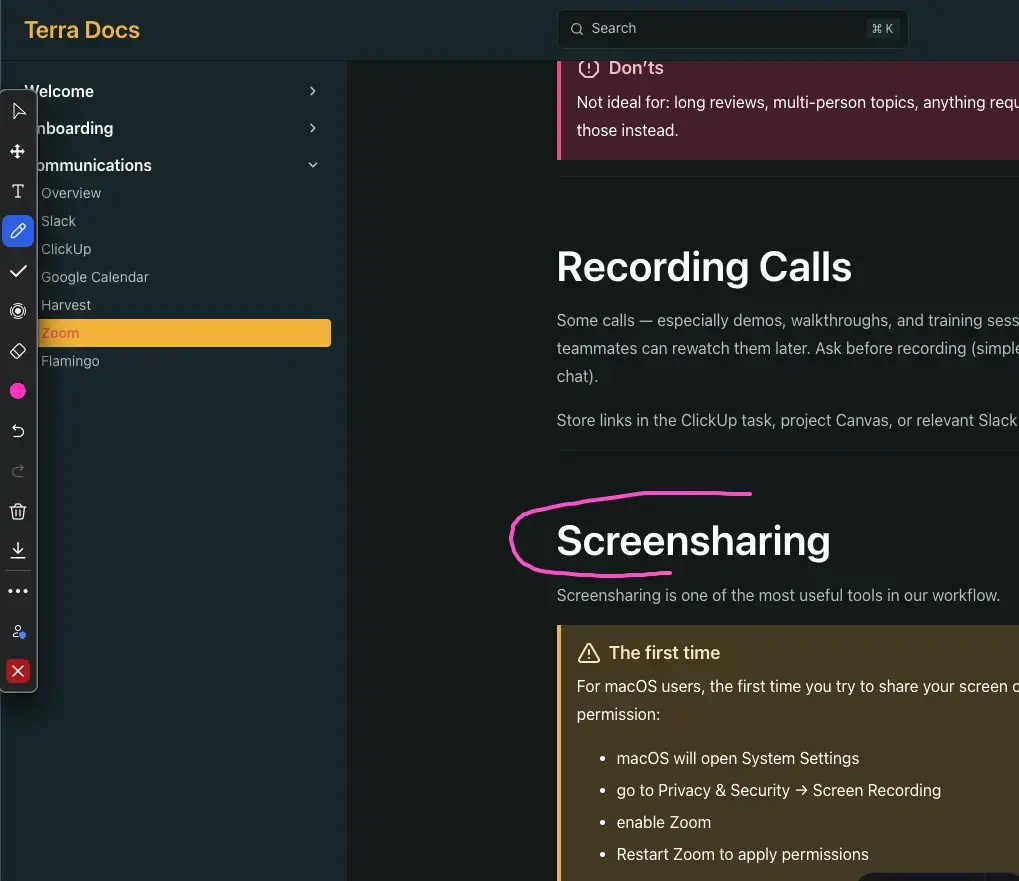
Section titled “Annotating & Drawing on Screen”Zoom allows you to annotate during screen share:
- highlight or underline elements
- draw boxes around UI areas
- write small notes
- point to sections with the pointer
Once you or your teammates are sharing a screen, a pencil icon will appear in the bottom left of your screen. This will allow you to anotate and draw in the call so others can see it:

Good Practices
Section titled “Good Practices”- Be concise and clear in your calls. Use Slack’s CallSheet to write down every topic you need to talk in the meeting
- Share screen when helpful
- Confirm decisions before leaving
- Define next steps explicitly
- Stay Longer if Needed: If something is unclear, it is better to stay 5–10 minutes more rather than leaving with doubts. Terra prioritises effectiveness, not simply speed
Knowledge Check
Test your understanding of this section
Loading questions...