Cache Headers
Cache headers are instructions sent by the server with every HTTP response.
They tell the browser and the CDN (like Netlify, Cloudflare, etc.) how and for how long they should store a copy of the response instead of asking the server again every time. They are important because:
- Fewer unnecessary requests to the server.
- Faster loading times for users.
Where do I see them?
Section titled “Where do I see them?”You can check headers in two quick ways:
In the browser
Section titled “In the browser”- Open DevTools → go to the Network tab.
- Click on any request and look at the Response Headers section.
Example
Section titled “Example”Cache-Control: public, max-age=3600, must-revalidateVary: Accept-Encoding, User-AgentAge: 3600- Cache-Control → defines how caching works.
- Vary → says “keep a separate copy depending on the browser or compression used.”
- Age → shows how long (in seconds) the copy has been in cache. (Added automatically by caches, not by you.)
Translation of that rule: “Keep this response cached for 1 hour. If the browser type or compression method changes, store another copy. Always recheck with the server before serving an outdated file.”
Main Cache-Control directives
Section titled “Main Cache-Control directives”public
Section titled “public”- What it means: The response can be cached by any cache — browser, CDN, proxy.
- When to use: Content is the same for everyone.
- Example: images, CSS, JS bundles.
private
Section titled “private”- What it means: The response is meant for a single user. It can be cached only in the browser, not in shared caches like CDNs.
- When to use: User-specific or sensitive data.
- Example: a user’s profile page.
max-age=
Section titled “max-age=”- What it means: How long (in seconds) the content is considered fresh.
- When to use: Any resource where you want to control the refresh window.
- Example: max-age=3600 → cache for 1 hour.
s-maxage=
Section titled “s-maxage=”- What it means: Same as max-age, but applies only to shared caches (CDNs, proxies).
- When to use: When you want the CDN to cache longer than the browser.
- Example: browser refreshes every 10 min, CDN holds for 1 day.
no-cache
Section titled “no-cache”- What it means: The response can be cached, but it must be revalidated with the server before being used.
- When to use: Data that changes frequently, but where bandwidth savings still help.
- Example: product listings, stock prices.
no-store
Section titled “no-store”- What it means: Do not store the response in any cache, ever.
- When to use: Highly sensitive data.
- Example: checkout pages, banking info.
must-revalidate
Section titled “must-revalidate”- What it means: Once content is expired, the cache must check with the server before serving it.
- When to use: Cases where strict consistency is required.
- Example: legal documents, compliance data.
stale-while-revalidate=
Section titled “stale-while-revalidate=”- What it means: Allows serving an “old” version of the file while a fresh copy is fetched in the background.
- When to use: You want speed but also up-to-date content.
- Example: news feeds, dashboards.
Common Caching Scenarios
Section titled “Common Caching Scenarios”| Scenario | Recommended header | Why |
|---|---|---|
| Static assets (images, fonts, hashed JS/CSS) | Cache-Control: public, max-age=31536000, immutable | Assets don’t change often, and if they do, the filename hash changes → safe to cache for 1 year. |
| Static assets (no hash in filename) | Cache-Control: public, max-age=3600, must-revalidate | Cache for 1 hour, but force validation after expiration. Useful for CSS/JS without versioning. |
| HTML pages (public, not logged-in) | Cache-Control: public, max-age=3600, must-revalidate | Cache for 1 hour, but always revalidate once expired. Keeps site fast while allowing updates. |
| User-specific pages (logged-in) | Cache-Control: private, no-cache, must-revalidate | Browser can cache, but CDNs/proxies can’t. Always validate with the server. |
| API responses (short-lived data) | Cache-Control: public, max-age=30, must-revalidate | Cache for 30s to reduce load, but revalidate quickly for fresh data. |
| Sensitive data (checkout, banking, medical info) | Cache-Control: no-store | Never cache this type of data anywhere. |
| Dynamic data with tolerance for brief staleness | Cache-Control: public, max-age=60, stale-while-revalidate=30 | User gets instant response, while cache refreshes in background. |
How we use cache in our projects
Section titled “How we use cache in our projects”Wordpress
Section titled “Wordpress”WPEngine automatically applies cache to all its projects, so we don’t need to include anything in the code.
All WP projects will have a 10 minute cache and prefetching links on hover by default.
Netlify
Section titled “Netlify”For our Netlify projects, we do need to add our cache in the code, since Netlify won’t introduce it automatically.
We usually will be dealing with Astro projects, so we’ll need to use two different strategies to add our cache headers.
1. For our SSR-rendered HTML pages
Section titled “1. For our SSR-rendered HTML pages”We’ll include our headers in our Layout.astro file.
We’ll follow the same strategy as the one WP introduces, for consistency.
Astro.response.headers.set('Cache-Control', 'public, max-age=600, stale-while-revalidate=60');Astro.response.headers.set('Netlify-CDN-Cache-Control', 'public, max-age=600, stale-while-revalidate=60, durable');2. For our static assets
Section titled “2. For our static assets”We can set headers for our static assets inside our netlify.toml file.
These times can be much longer, since they relate to assets that won’t be changing very often.
# Cache static assets longer (1 year for immutable assets like hashed files)[[headers]]  for = "/_astro/*"  [headers.values]    Cache-Control = "public, max-age=31536000, immutable"
# Cache fonts longer[[headers]]  for = "/fonts/*"  [headers.values]    Cache-Control = "public, max-age=31536000, immutable"
# Cache images longer[[headers]]  for = "/img/*"  [headers.values]    Cache-Control = "public, max-age=86400"
We’re setting 1 year cache for fonts and hashed files and one day for images.
Clearing cache
Section titled “Clearing cache”We can clear our cache easily in both platforms.
Wordpress
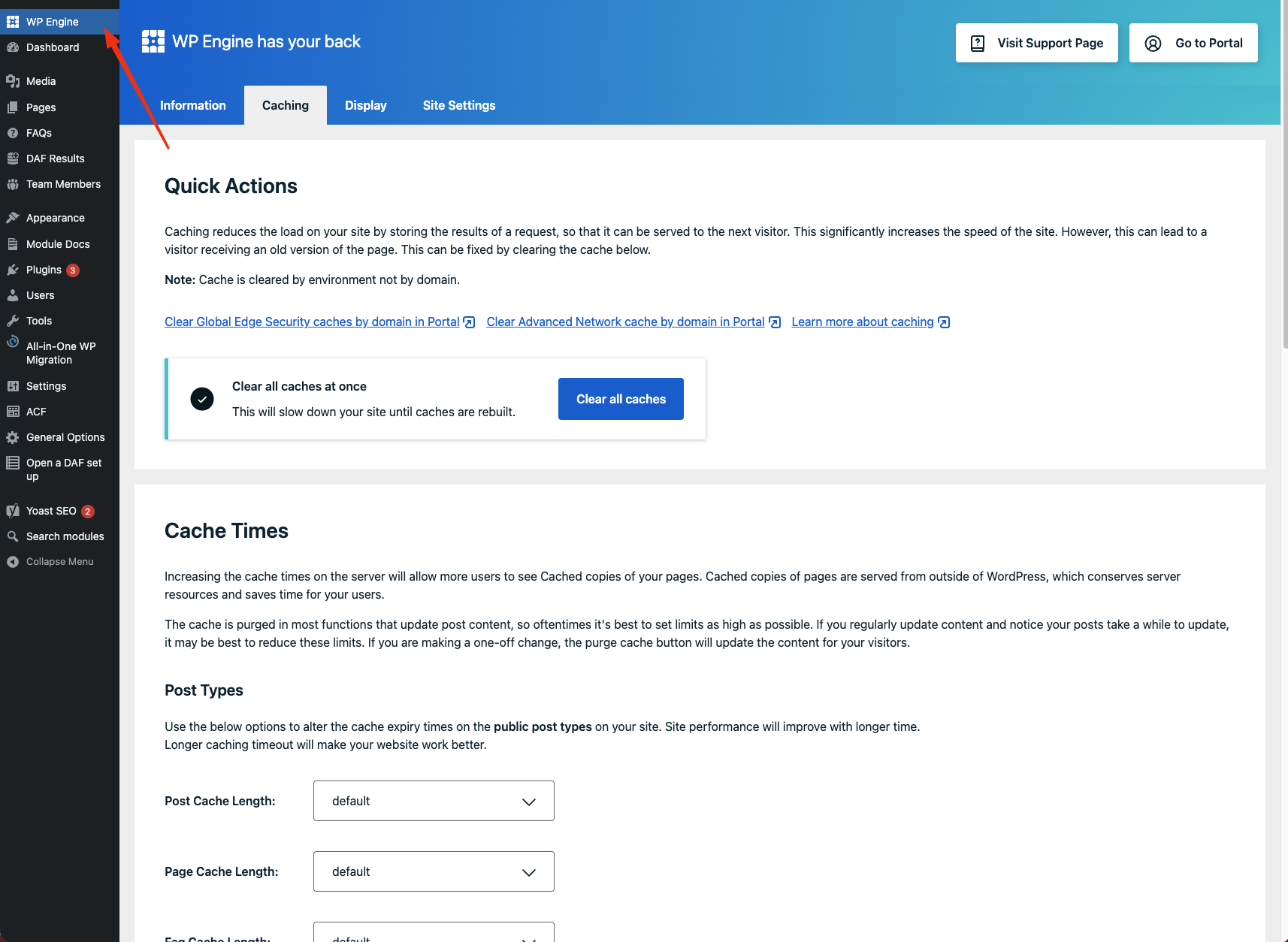
Section titled “Wordpress”In the backend of your project, you’ll see a WPEngine section, head into there and in the second tab you’ll find a “Clear all caches”
Netlify
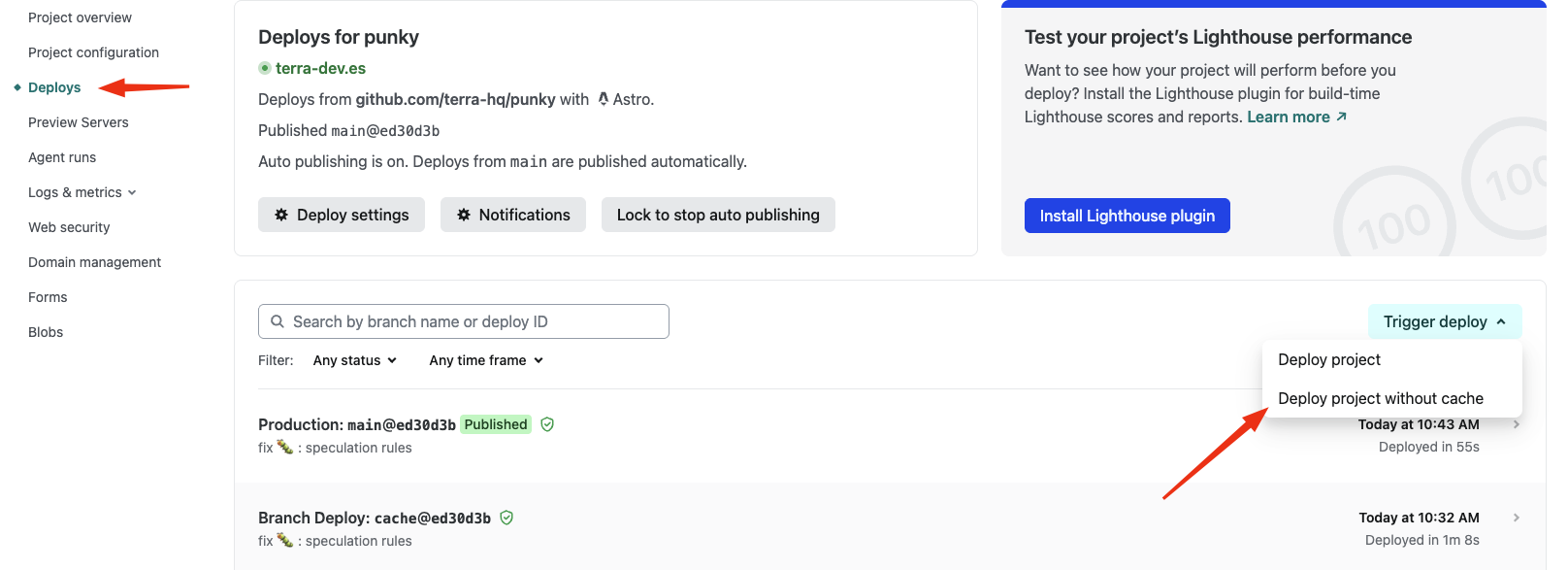
Section titled “Netlify”In the deploys section of our Netlify account, you’ll see a “Trigger deploy” select and you’ll need to select “Deploy project without cache”.
Knowledge Check
Test your understanding of this section
Loading questions...