Sitemap + Robots.txt
Sitemaps are a key part of SEO, but they are often misunderstood and blamed for issues they do not actually control.
This document explains What a sitemap actually is, how we handle sitemaps and robots.txt in WordPress (Yoast) and Sanity + Astro and where dev responsibility ends and SEO responsibility begins
What is a sitemap
Section titled “What is a sitemap”A sitemap is a machine-readable list of canonical URLs, usually an XML file, that help search engines discover URLs faster.
Typical sitemap URLs include:
/sitemap.xml/sitemap_index.xml
A sitemap should only contain:
- URLs that are meant to be indexed
- Pages returning a
200status code - Final canonical versions of each URL
What is robots.txt?
Section titled “What is robots.txt?”The robots.txt file is used to control crawling, not indexing. It tells search engine bots which parts of a site they are allowed or not allowed to access and crawl.
If a URL is blocked in robots.txt, Google will not crawl it, even if:
- The URL appears in the sitemap
- The URL is linked internally
- The URL has external links pointing to it
In WordPress
Section titled “In WordPress”Yoast plugin
Section titled “Yoast plugin”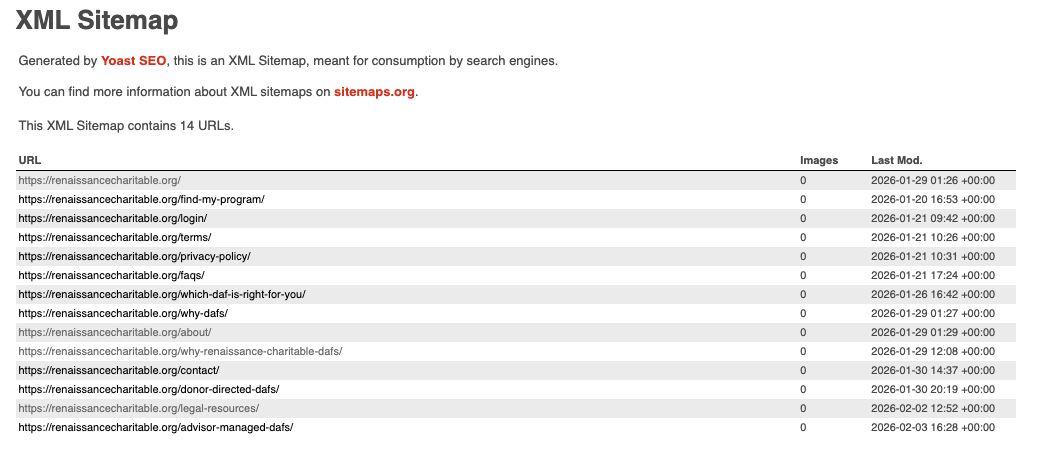
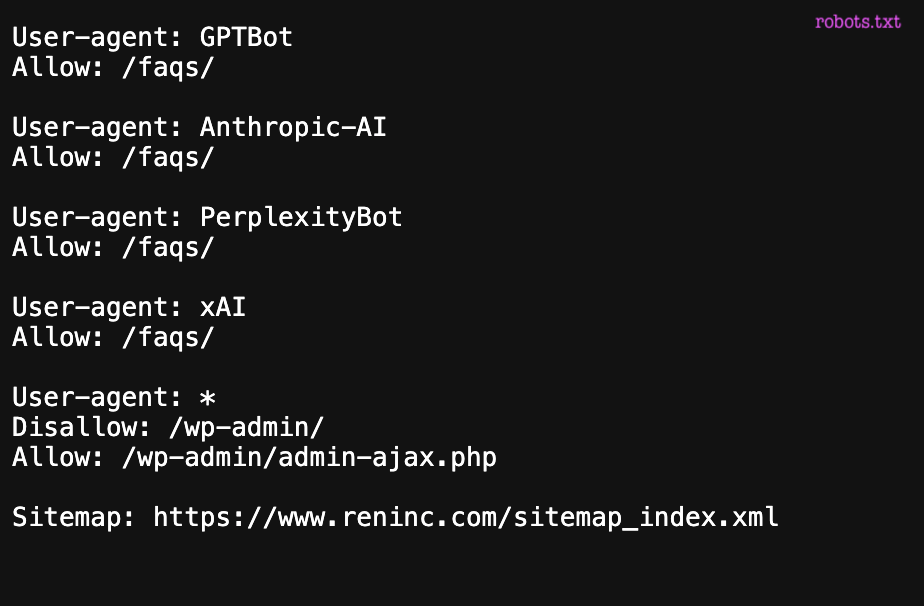
The Yoast plugin automatically generates sitemaps based on WordPress configuration and the SEO rules defined in the admin.
Yoast does not decide what should rank or be indexed, but it reflects the decisions already made in WordPress and SEO settings.
It generates:
sitemap_index.xml- One sitemap per content type
- A virtual
robots.txtfile
Regarding behavior:
- URLs marked as
noindexare automatically excluded from the sitemap - Indexable URLs are included using their canonical versions
- Basic
allow / disallowcrawling rules are added torobots.txt
PHP errors that break the sitemap
Section titled “PHP errors that break the sitemap”A very common scenario is the following: a change is deployed and, suddenly, the sitemap URL no longer returns valid XML.

In WordPress, the sitemap is generated dynamically. This means that any PHP fatal error, even in unrelated code, can completely break the sitemap output and result in invalid XML.
How to debug
Section titled “How to debug”Start by remembering that a sitemap is an XML file, not an HTML page. Always check the raw source of the response instead of the rendered view.
From there, debug step by step:
- review recently changed functions
- check the server error logs for PHP fatal errors
- temporarily disable plugins to rule out conflicts
In Sanity + Astro
Section titled “In Sanity + Astro”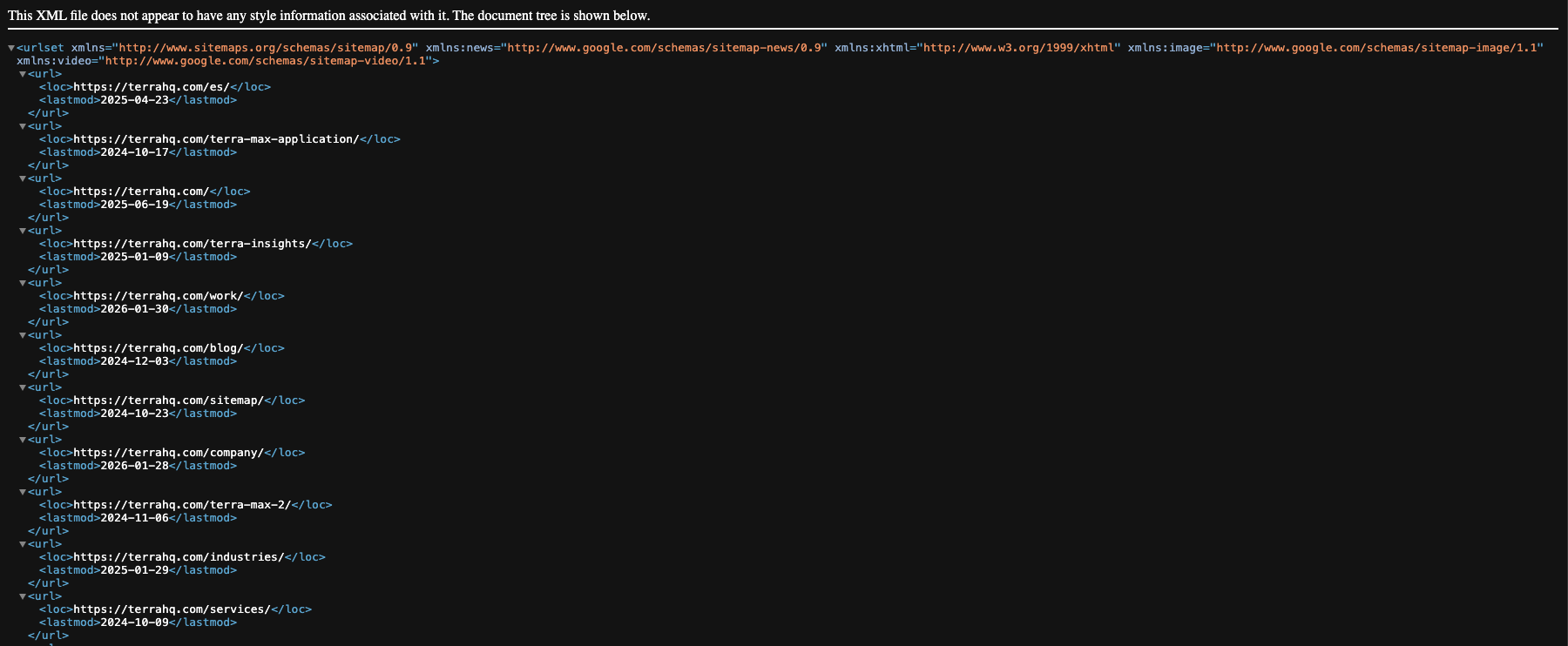
Create the sitemap
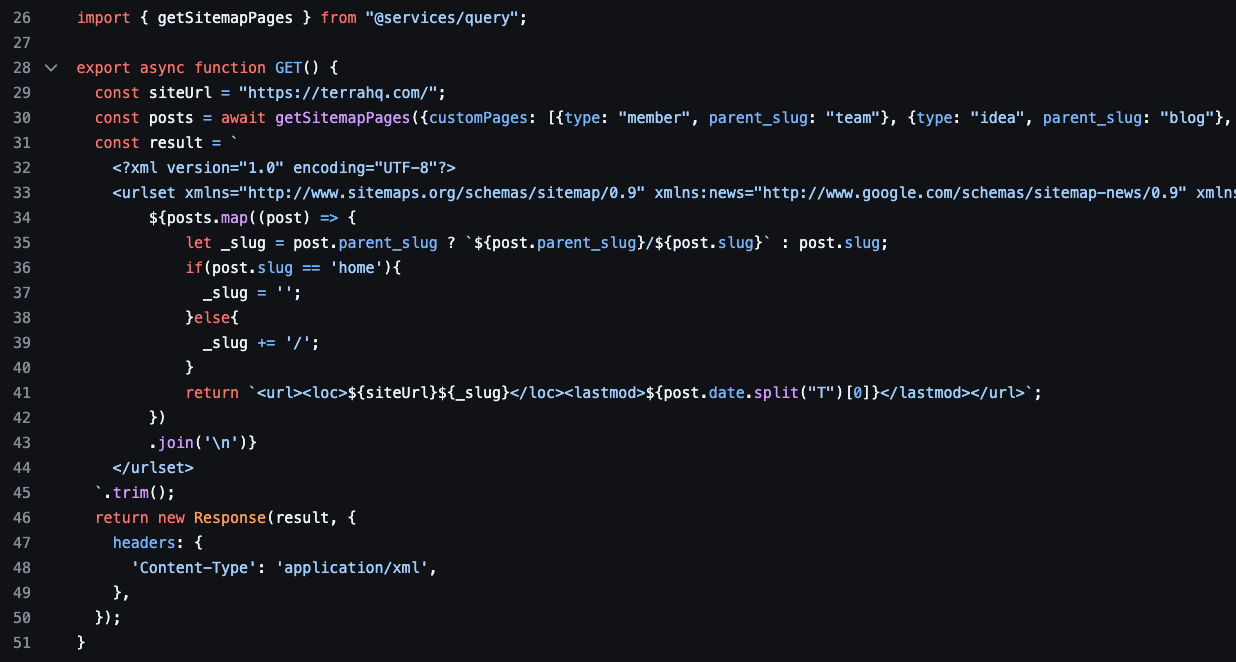
Section titled “Create the sitemap”In Astro, sitemaps are generated manually. In Astro, if you create a file called sitemap.xml.ts, that TypeScript file is responsible for generating the XML sitemap output.
01. sitemap.js
Section titled “01. sitemap.js”Create a function that returns an array with the CPTs we know that should be indexed. Here’s an example:
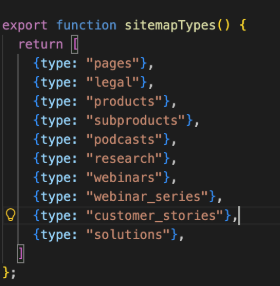
02. sitemap.xml.ts
Section titled “02. sitemap.xml.ts”Create the file sitemap.xml.ts. Astro will automatically expose a /sitemap.xml URL on the site, with whatever content you generate in that file.
This file references the functions defined in sitemap.js:
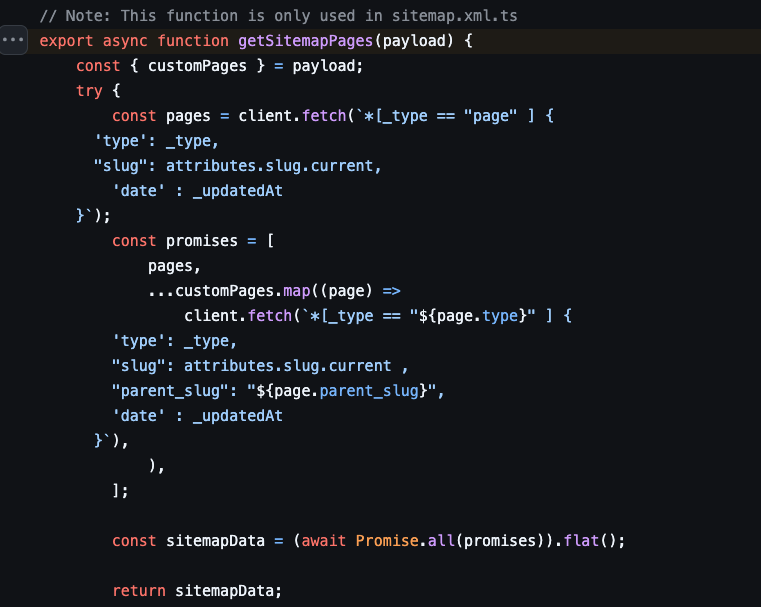
sitemapTypes(), which returns the array of all CPTs to include in the sitemap.getSitemapPages(), the function that calls Sanity to fetch all pages/documents that should be indexed
03. GROQ query
Section titled “03. GROQ query”Loop all the CPTs and call the Sanity Studio to get the correct information of each page. This will return all pages that should be indexed, within their slug and last modified date.
Create the robots.txt
Section titled “Create the robots.txt”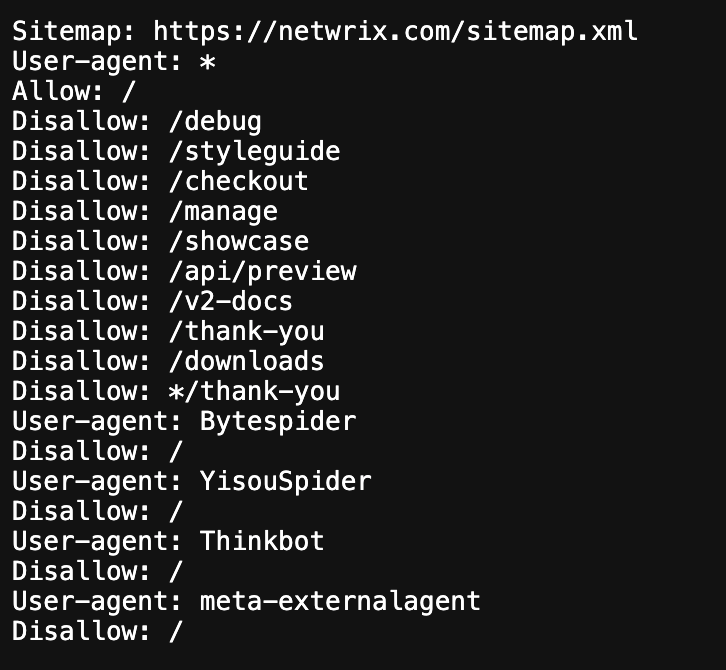
01. Sanity Configuration
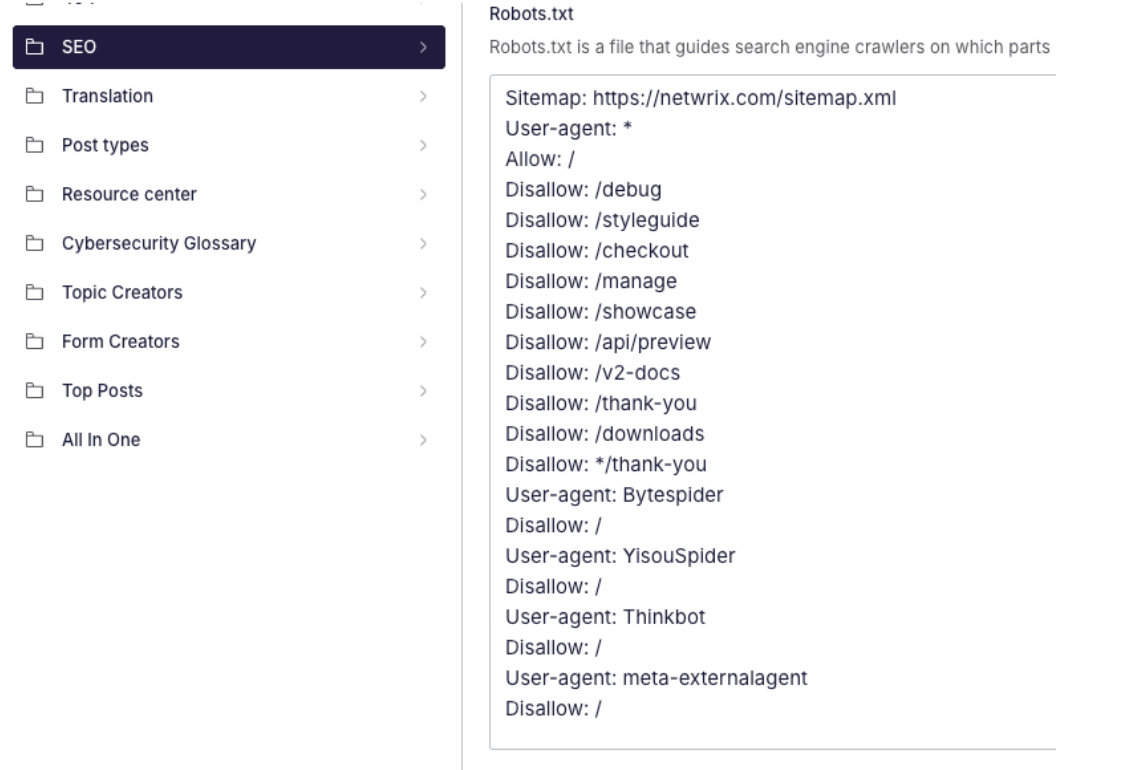
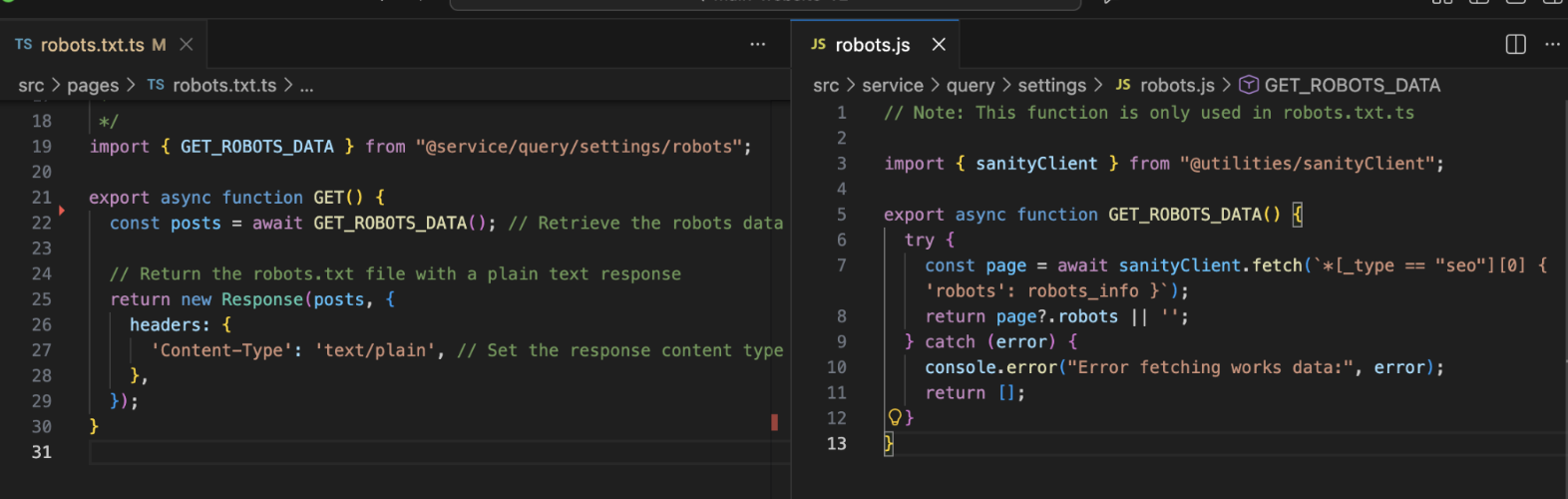
Section titled “01. Sanity Configuration”In Sanity, we create a textarea field under Settings / SEO where we define the required robots.txt configuration.
02. Astro
Section titled “02. Astro”In Astro, we read that information from a file called robots.txt.ts, that is located on the root. This file fetches the data from Sanity and uses it to dynamically generate the robots.txt file.
Upload the sitemap into GSC
Section titled “Upload the sitemap into GSC”Submitting a sitemap in Google Search Console helps Google discover and re-crawl URLs more efficiently.
Google automatically revisits submitted sitemaps periodically, but manually submitting or re-submitting one can help accelerate the crawling process after significant structural changes.
Instructions
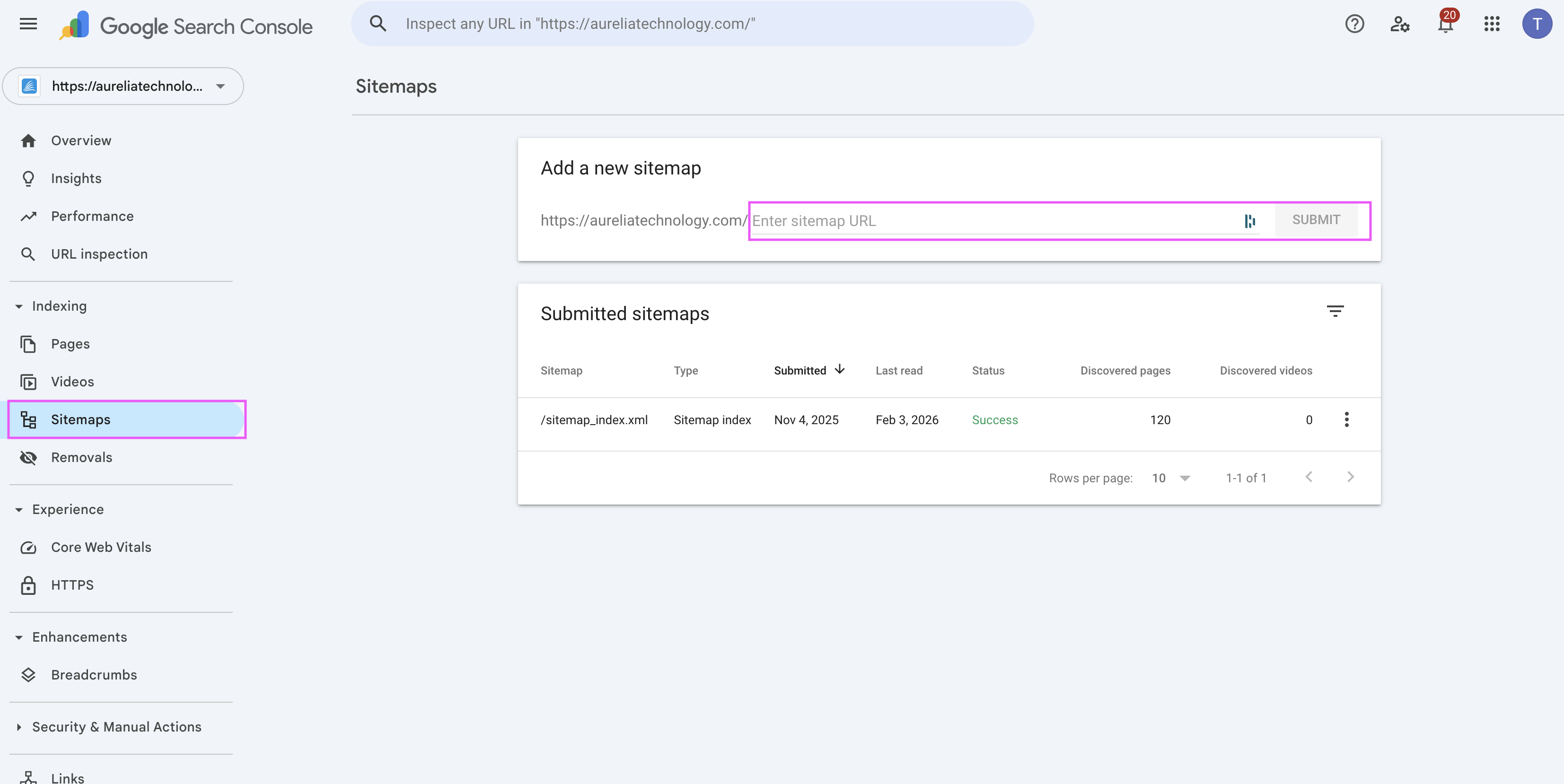
Section titled “Instructions”- Log in to Google Search Console using the Terra dev account.
- Select the correct project (property) from the top-left selector.
- Go to Sitemaps
- Enter the sitemap slug
sitemap.xml - Click Submit
If the sitemap was already submitted, you can resubmit it to signal Google to review it again.
Best practices
Section titled “Best practices”- Early decide whether a content should be indexable or not, so you can include or exclude it and avoid future issues
- Don’t use sitemaps to “fix” bad linking
- Don’t include in the sitemap: filtered URLs, pagination, tracking params, non-canonical URLs or using sitemaps as a workaround for bad linking
- A sitemap should reflect intentional decisions, not defaults.
- Use
robots.txtto control crawling, not indexing - Avoid blocking URLs that are meant to be indexed, even temporarily
- Do not include URLs in the sitemap that are blocked in
robots.txt - Keep
robots.txtrules minimal and explicit to avoid accidental over-blocking - Avoid blocking assets (CSS, JS, images) required to correctly render indexable pages
- Always check the final rendered
robots.txtand sitemap URLs after a deploy - In practice:
- Devs control what is exposed
- SEO decides what should be indexed
- Regenerating the sitemap rarely fixes the problem —the fix is usually in logic or indexability
Knowledge Check
Test your understanding of this section
Loading questions...