Install NVM
Different projects often require different versions of Node.js. NVM (Node Version Manager) makes it easy to install, manage, and switch between multiple Node versions on your machine, ensuring you can work on any project without version conflicts.
What is NVM?
Section titled “What is NVM?”NVM (Node Version Manager) is a powerful tool that allows you to easily install and manage multiple versions of Node.js on your system.
We use NVM because it:
- Allows switching between Node.js versions with simple commands
- Enables working on projects with different Node requirements
- Prevents version conflicts across projects
- Makes it easy to test code on different Node versions
- Doesn’t require administrator/root privileges for Node installations
- Keeps your system clean with isolated Node installations
How to Install NVM
Section titled “How to Install NVM”01. Open Your Terminal
Section titled “01. Open Your Terminal”Launch your terminal application.
02. Run the Installation Script
Section titled “02. Run the Installation Script”Execute the following curl command to download and install NVM:
curl -o- https://raw.githubusercontent.com/nvm-sh/nvm/v0.39.3/install.sh | bashThis will download and run the NVM installation script.
03. Verify Installation
Section titled “03. Verify Installation”To verify the installation, run:
command -v nvmIf you see nvm as output, the installation was successful.
04. Fix Developer Tools Error (macOS only)
Section titled “04. Fix Developer Tools Error (macOS only)”You might see an error: “nvm xcrun error invalid active developer path.”
To solve this, install Xcode Command Line Tools:
xcode-select --install05. Check NVM Version
Section titled “05. Check NVM Version”After completing the previous steps, verify NVM is working:
nvm -vYou should see the version number (e.g., 0.39.3).
Fix: NVM Not Loading Automatically in Terminal
Section titled “Fix: NVM Not Loading Automatically in Terminal”Sometimes after installing NVM, you may notice that it’s not available in new terminal sessions, even though the installation completed successfully.
This usually happens because the installation script failed to correctly update your shell configuration file (.zshrc or .bashrc).
Why This Happens
Section titled “Why This Happens”During installation, NVM attempts to append the necessary environment variables to your shell config file. However, depending on:
- Your shell (
zsh,bash, etc.) - Custom configurations or permission issues
- Using tools like Oh My Zsh or custom terminal environments
…the required lines might not be added automatically, or may be placed incorrectly.
The Fix
Section titled “The Fix”You need to manually add the required lines to your shell configuration file.
For Zsh Users (default on macOS)
Section titled “For Zsh Users (default on macOS)”Edit your .zshrc:
nano ~/.zshrcAdd the following at the end of the file:
export NVM_DIR="$HOME/.nvm"[ -s "$NVM_DIR/nvm.sh" ] && \. "$NVM_DIR/nvm.sh"Save the file (Ctrl+O, Enter, then Ctrl+X), then reload it:
source ~/.zshrcFor Bash Users
Section titled “For Bash Users”Edit your .bashrc:
nano ~/.bashrcAdd the same lines at the end:
export NVM_DIR="$HOME/.nvm"[ -s "$NVM_DIR/nvm.sh" ] && \. "$NVM_DIR/nvm.sh"Save and reload:
source ~/.bashrcVerify It’s Working
Section titled “Verify It’s Working”After applying the changes, open a new terminal and run:
nvm -vYou should now see the installed version, confirming that NVM loads correctly every time.
Installing Node.js Versions
Section titled “Installing Node.js Versions”Check Installed Versions
Section titled “Check Installed Versions”First, see what versions you currently have installed:
nvm lsInitially, you might only see:
-> systemiojs -> N/A (default)node -> stable (-> N/A) (default)unstable -> N/A (default)Install Specific Versions
Section titled “Install Specific Versions”Install the Node.js versions you need for your projects. For example:
nvm install 14nvm install 16nvm install 18nvm install 20Switch Between Versions
Section titled “Switch Between Versions”To use a specific version:
nvm use 16To set a default version:
nvm alias default 18View All Installed Versions
Section titled “View All Installed Versions”Once you have multiple versions installed, check them with:
nvm ls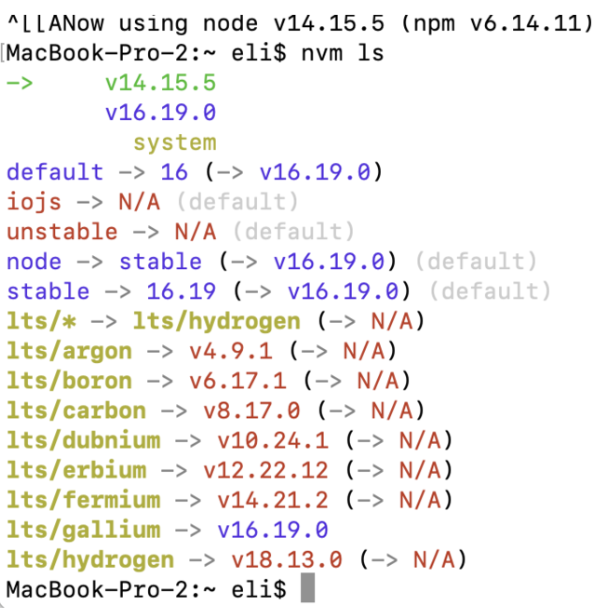
The arrow (->) indicates which version is currently active.
Common NVM Commands
Section titled “Common NVM Commands”| Command | Description |
|---|---|
nvm install <version> | Install a specific Node.js version |
nvm use <version> | Switch to a specific version |
nvm ls | List all installed versions |
nvm ls-remote | List all available versions to install |
nvm alias default <version> | Set a default Node.js version |
nvm current | Display the currently active version |
nvm which <version> | Show the path to a specific version |
nvm uninstall <version> | Remove a specific version |
Best Practices
Section titled “Best Practices”- Install the LTS (Long Term Support) versions for production projects
- Use the
latestversion for experimenting with new features - Set a sensible default version using
nvm alias default <version> - Switch to the project’s required Node version before running
npm install - Consider using a
.nvmrcfile in your project root to specify the required Node version
Knowledge Check
Test your understanding of this section
Loading questions...