Adobe Experience Manager (AEM)
Adobe Experience Manager (AEM) is an enterprise CMS and digital experience platform commonly used by large organizations to manage complex, content-heavy websites. At Terra, we use AEM exclusively for Abbott.
Everything documented here reflects how we use AEM for Abbott, not how AEM could be used in other types of projects.
Overview
Section titled “Overview”AEM works differently from more flexible or design-driven CMS platforms. Instead of freely designing layouts, content is created within a highly structured system based on:
- predefined templates and page types
- reusable components
- content fragments and assets
- permissions, workflows, and approvals
- global styles and brand rules defined by Abbott
This structure ensures consistency, compliance, and scalability across large sites, but it also means that changes must follow specific rules and processes.
Environments
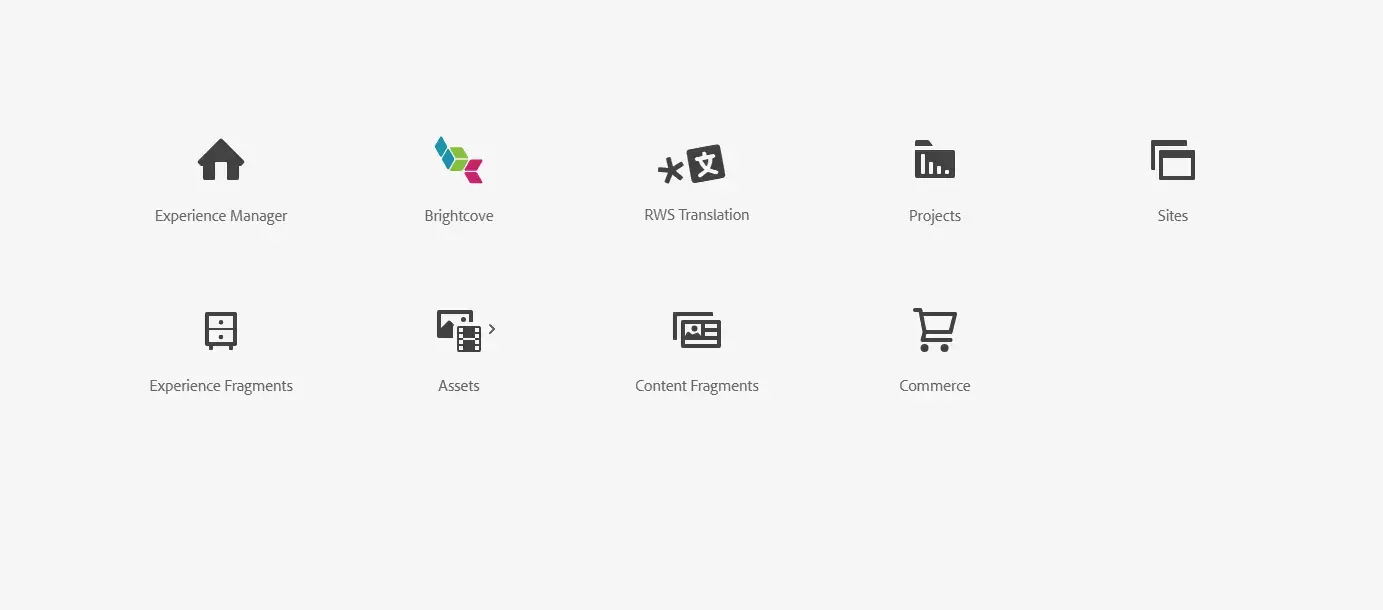
Section titled “Environments”Once you log in AEM, you’ll reach to the main options.
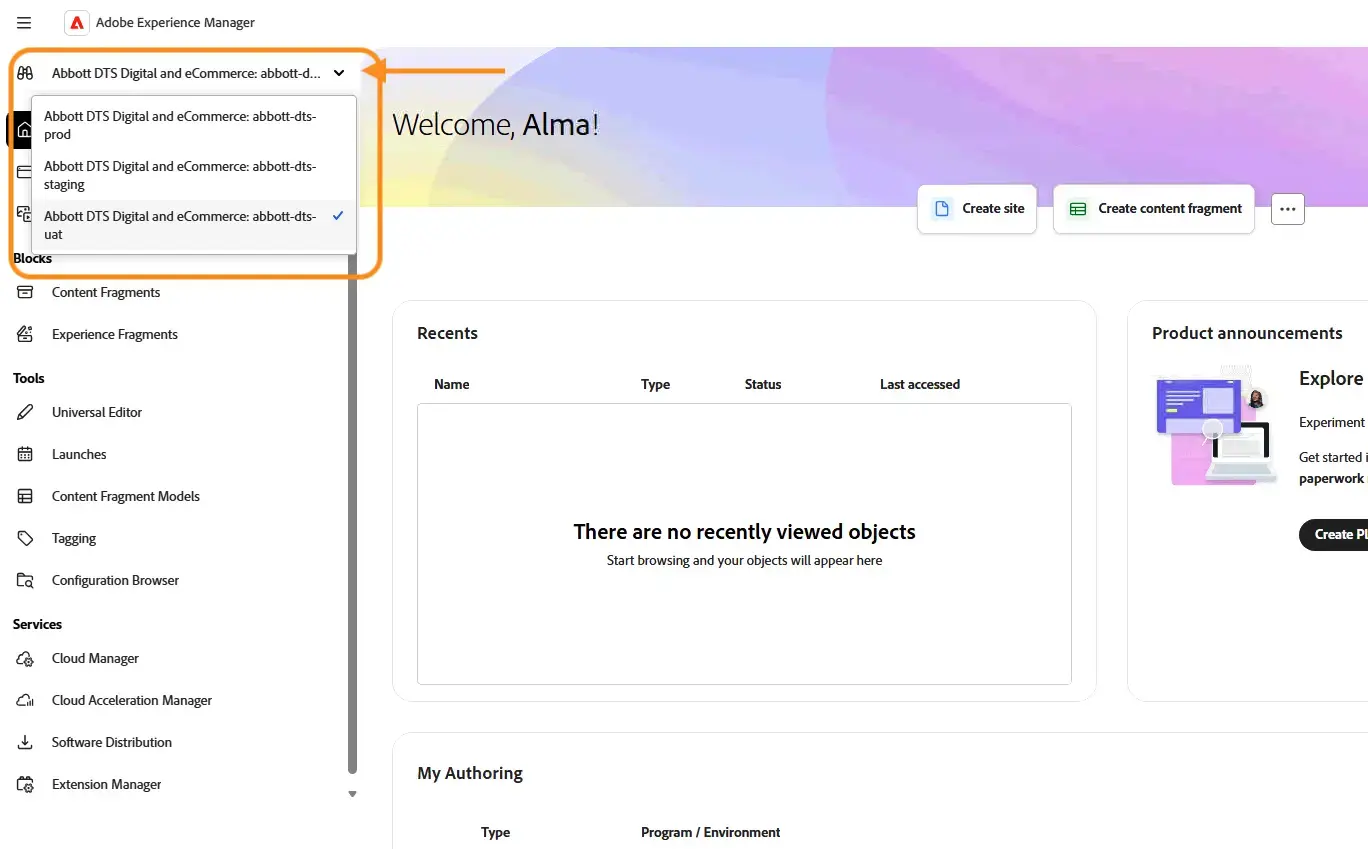
In Experience Manager, you can change between available environments.
- uat → stage
- prod → production
All pages are managed from the Sites section. This is the main entry point to navigate the content structure.
From Sites, you’ll need to drill down through several folders (as shown bellow) to reach the pages you want to work on. These folders represent the site structure and language hierarchy defined by Abbott.
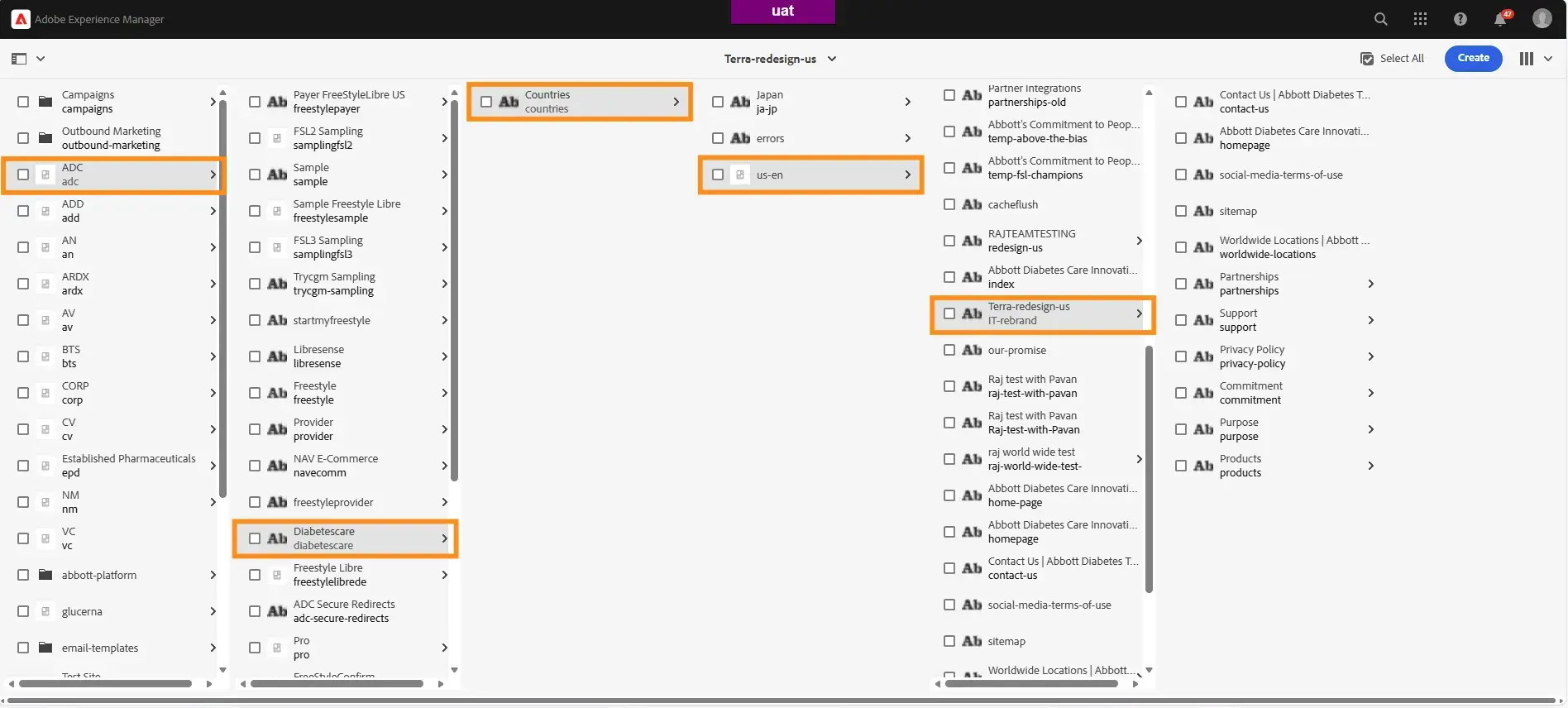
To interact with a page, you must first select it using the checkbox. Once selected, different actions become available in the top toolbar: Edit or Properties.

Properties
Section titled “Properties”From Properties, you can manage key page-level settings, such as:
- template
- meta title
- meta description
- page slug (URL)
URL structure (move pages)
Section titled “URL structure (move pages)”Pages can also be moved from here.
If you need to create a URL structure like /folder/page, you must:
- create the folder (using the
Createbutton — folders are created as pages) - create the page
- select the page and click in
Propertiesto move the page into the folder
Once a page contains another page, it stops behaving like a normal page and becomes part of the URL path instead.
To edit a page, select it and click Edit.
Inside the editor, you can click on any element to modify it. You’ll usually see two main options:
- Wrench icon: content-related settings
- Pen icon: style or visual options

Each component exposes different controls depending on its type.
Knowledge Check
Test your understanding of this section
Loading questions...