WP Admin Tour
Your local WordPress environment is your safe testing space, anything you do here will not affect production or any live content.
Accessing WordPress
Section titled “Accessing WordPress”To access WordPress (in your localhost or in every environment), open your browser and add /wp-admin to your url:
// LOCALLYhttp://localhost/wp-sei/wp-admin// IN PRODhttps://sei.com/wp-adminLog in using your the credentials that appear in the canvas of the project’ Slack channel. This will take you to the WordPress admin panel.
A safe environment to experiment
Section titled “A safe environment to experiment”Your local WordPress is meant for testing and development:
- You can create, edit, and delete content freely
- Nothing you do here will be reflected in production
- It’s the best place to experiment, test layouts, and validate changes
- Since you’ve already installed the project and imported All-in-One WP Migration, your local environment contains the same content and structure as production.
Creating pages and using templates
Section titled “Creating pages and using templates”To test your work:
- Go to
Pageslocated in the left sidebar →Add New - Create a new page (for example, a personal testing page)
- On the right sidebar, select the page template you created in the code
- Publish or update the page
- View the page in the browser to see your changes
This is how you connect your code (templates, modules, components) with what you see on screen.
Search Modules
Section titled “Search Modules”WordPress includes a Search Modules tool (find it in the left sidebar) that allows you to quickly identify where a specific module is being used across the site.
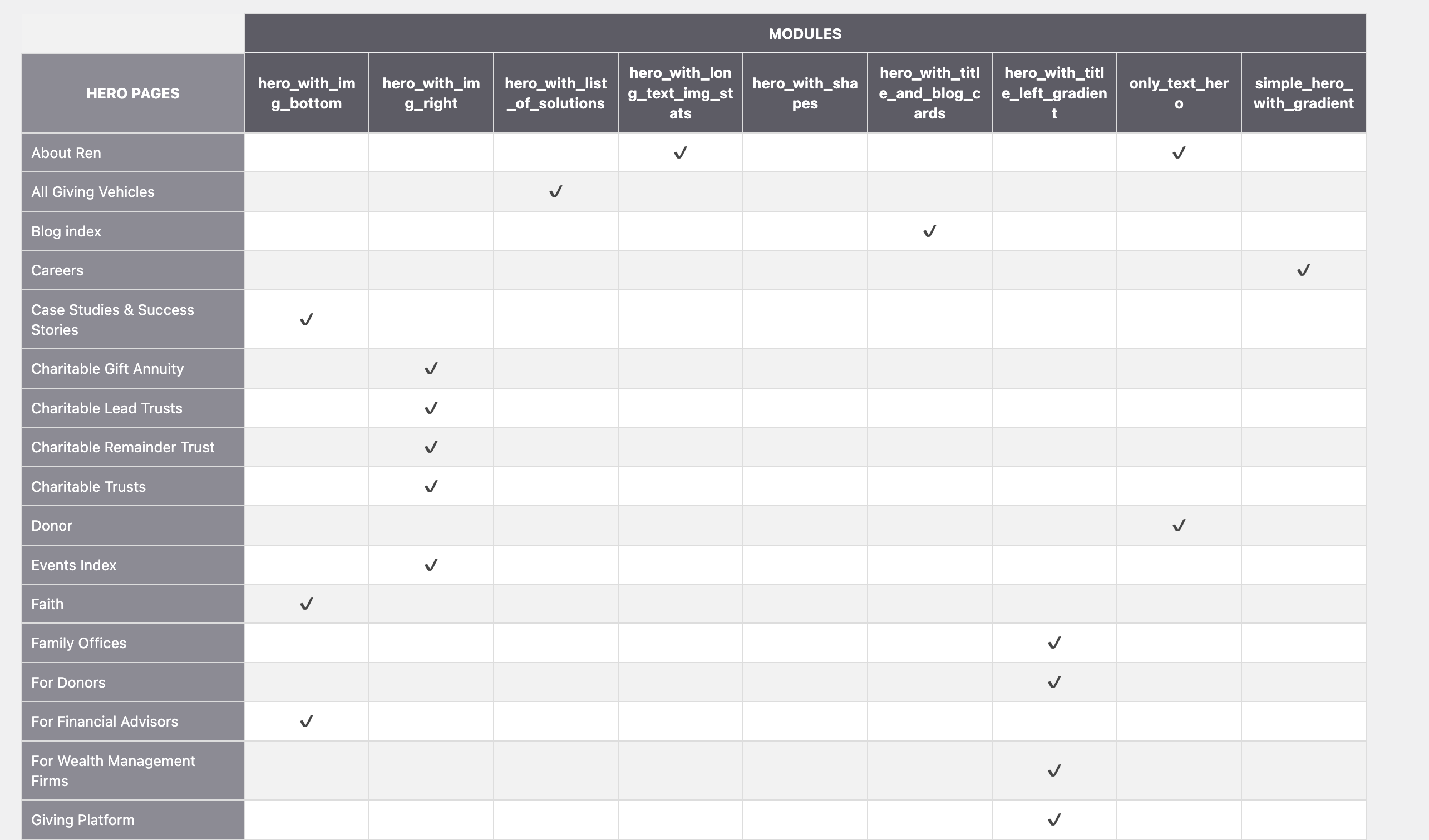
This is especially useful when you:
- Need to test a specific module already in use
- Want to see real examples of how a module behaves with content
- Are debugging or improving an existing module
- Don’t know which page is using the module you’re working on
Working with ACF
Section titled “Working with ACF”ACF (Advanced Custom Fields) is mainly used during backend development to manage dynamic content, so if you’re working on the backend, this will be especially useful for you.
- You’ll use ACF (Advanced Custom Fields) to manage dynamic content
- Modules and components are connected to ACF fields
- You can edit field values directly in the WordPress admin to test different scenarios
- ACF allows you to control how content is rendered without changing the code every time.
It’s important to watch this video to have full context of the explained topics. If the video doesn’t load or stops with an error, you can watch it directly on Loom.
Learn More
Section titled “Learn More”Knowledge Check
Test your understanding of this section
Loading questions...